I Gave Claude Code Google Docs-Style Comments
I Gave Claude Code Google Docs-Style Comments
Part of Building GribGrab — a series on what I learn building a weather app with Claude Code.
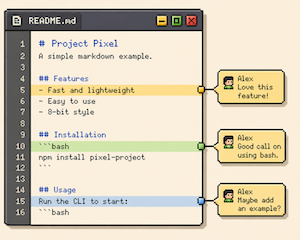
Google Docs has this collaboration system I love: you highlight a line, drop a comment, and bounce back and forth in the margin — suggestions, questions, replies. It’s the back-and-forth that makes it work.
That’s the one thing I missed when I moved most of my work into Claude Code. The drafts were good, but I had no clean way to say “this part — fix this.”
So I rebuilt the workflow.
My Flow
It’s simpler than it sounds:
- I use VSCode to structure my folders, work on files, and talk to Claude Code through the built-in terminal.
- When I start a project, topic, or task, I create a Markdown file.
- The structure is always the same: goal, resources, outcome.
- I ask Claude Code to work on that file and draft the outcome right there.
- When I want to comment on something, I highlight the text and hit Cmd+Option+M — the same shortcut Google Docs uses for inserting a comment.
- Then I tell Claude Code to act on the comments.
- I iterate on the same file by repeating steps 5 and 6.
The whole thing lives in one Markdown file. Goal at the top, the draft below, my comments inline. No context lost, no copy-pasting between a chat window and an editor.
How to Set It Up
This is the part that makes it click. There’s no extension — it’s a single VSCode keybinding that wraps whatever text I’ve selected in an HTML comment addressed to Claude.
Open the Command Palette (Cmd+Shift+P), run “Preferences: Open Keyboard Shortcuts (JSON)”, and add this:
{
  "key": "alt+cmd+m",
  "command": "editor.action.insertSnippet",
  "when": "editorTextFocus",
  "args": {
    "snippet": "<!-- Claude, this is my comment on the quoted text. Quote: \"${TM_SELECTED_TEXT}\" | My comment: $0 -->"
  }
}
Now highlight any line, press Cmd+Option+M, and you get:
<!-- Claude, this is my comment on the quoted text. Quote: "the highlighted line" | My comment: ▌ -->The cursor lands right where you type your note. Two things make this work:
${TM_SELECTED_TEXT}pulls in whatever you’ve selected, so Claude knows exactly which line you mean.- It’s an HTML comment (
<!-- -->), so it stays invisible when the Markdown renders but Claude reads it fine.
Write your comment, then tell Claude Code to go through the file and address them. It reads the quote, reads your note, and edits in place — just like resolving comments in a doc.
Why It Works
The magic isn’t the keybinding. It’s that comments turn a one-shot prompt into a conversation anchored to the text.
Instead of describing which paragraph I mean in the terminal, I point at it directly. Instead of re-explaining context, the context is the file. The draft and the feedback live in the same place, and that place is version-controlled, searchable, and mine.
It’s the Google Docs margin, minus Google Docs.
Takeaways
- Keep one file per task. Goal, resources, outcome — that’s the whole structure.
- Comment inline, don’t re-prompt. Anchoring feedback to specific lines beats describing them in the terminal.
- Steal the shortcut you already know. Mapping it to Cmd+Option+M means there’s nothing new to remember.
- It’s one keybinding. No extensions, no setup tax.
How do you give feedback to your AI assistant? Still typing it all in the chat — or have you found a better margin?
Thanks for reading! If you'd like to share your thoughts send me an email.